CSV File Import
If you wish to send packages to a large number of recipients, you can use the File Import function.
Create a Profile
Before importing the file, you must create an import profile.
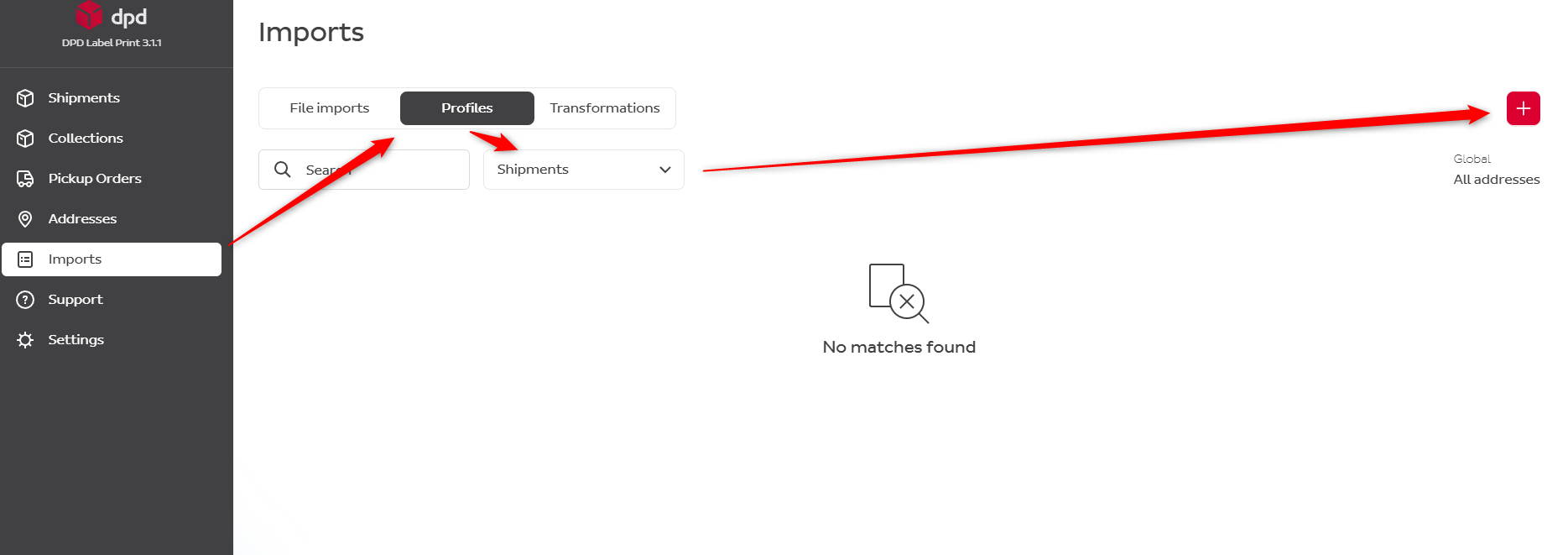
- Go to Profiles → Addresses or Shipments → press +
- Choose Import Type → Addresses or Shipments
- Add a Profile Name (e.g. Address book)
- Choose Import File Type → CSV
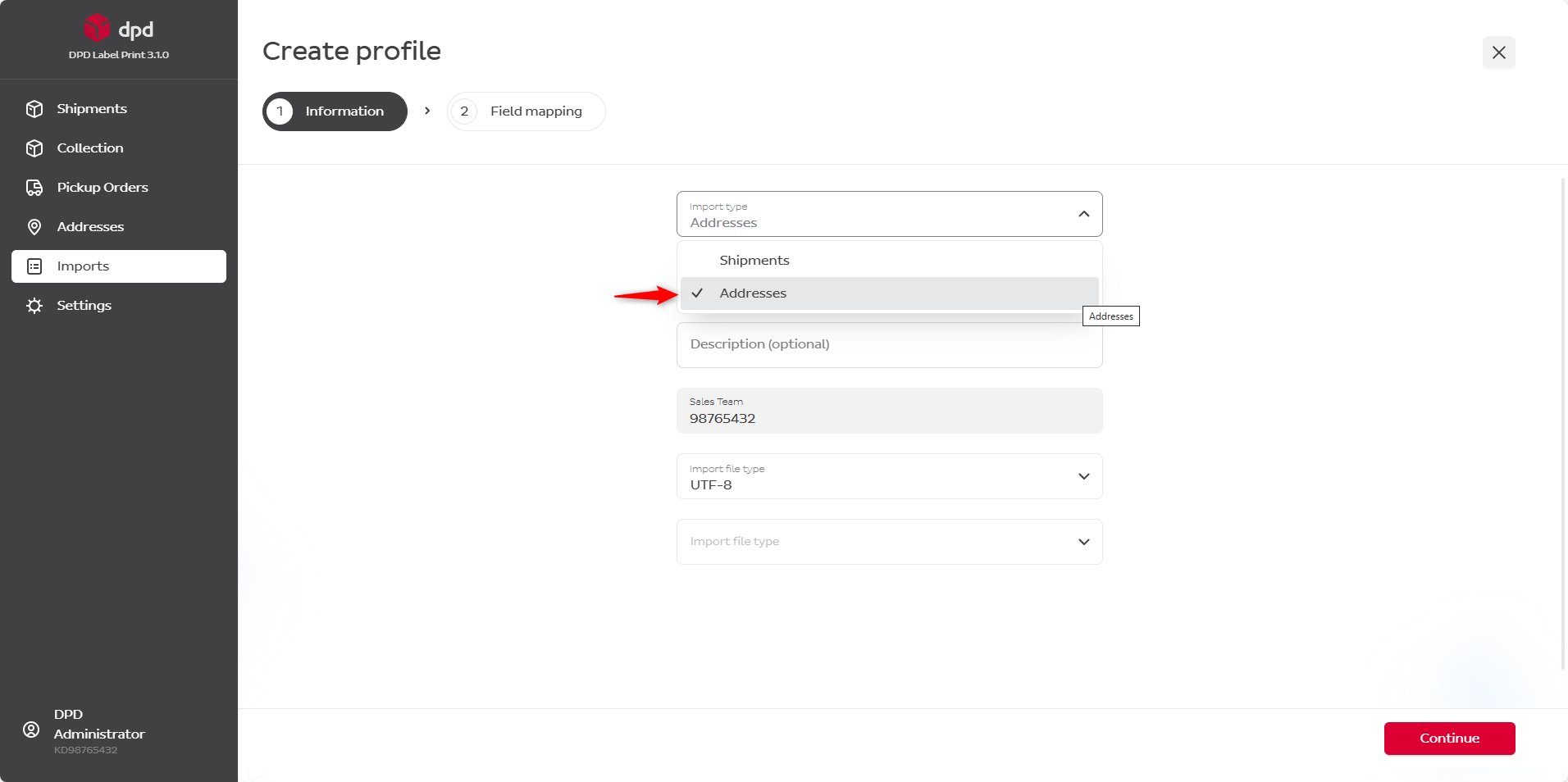
The rest can remain as default.
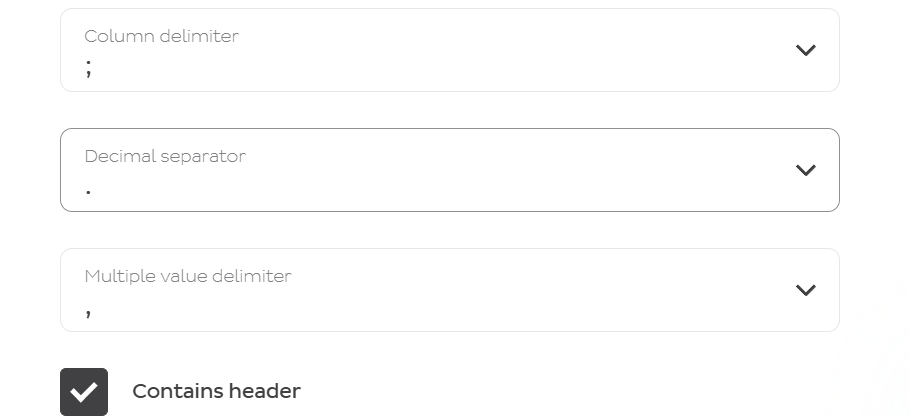
- Press Continue
- Press Upload File
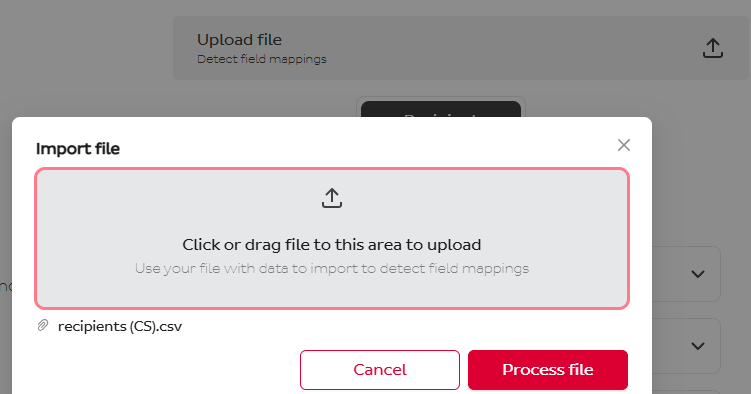
- Press Process File
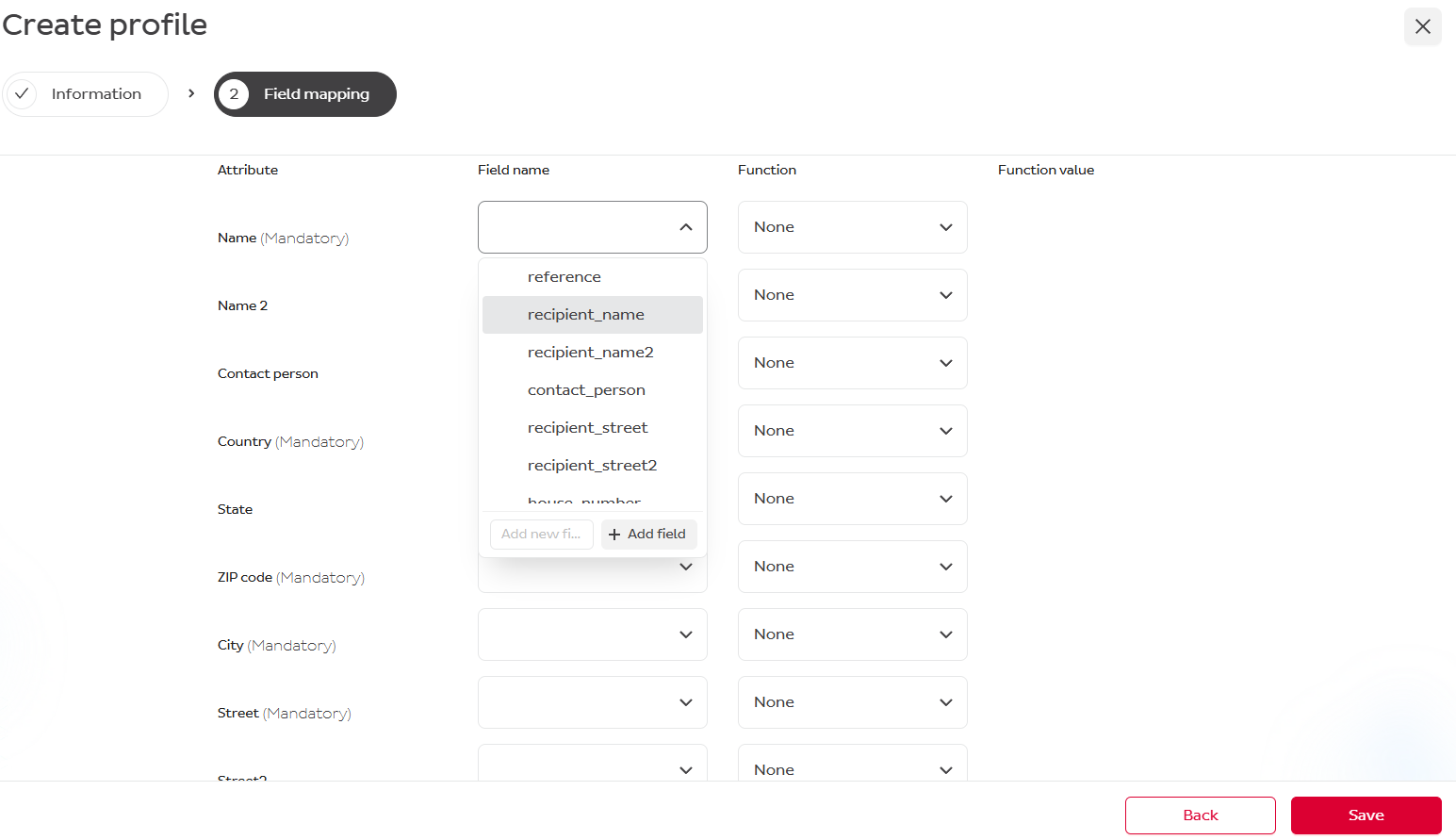
- Map field names based on the header names of your CSV file

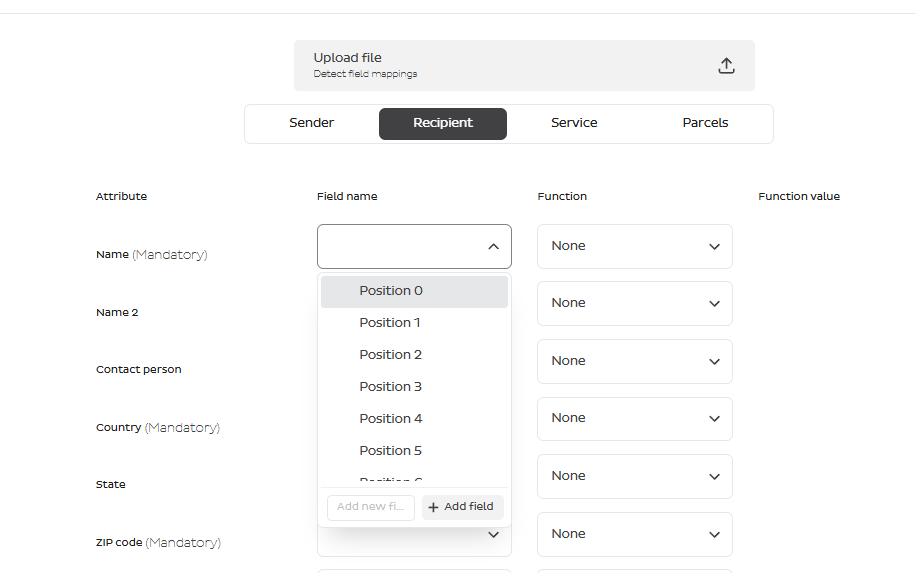
If your CSV file has no header row, the dropdown list will show Position 0, 1, 2, etc. The first column (A) of the spreadsheet corresponds to Position 0.
The Function column can remain untouched.
If needed, you can add a Transformation — created and used when data from the CSV file must be adapted for import. For example, use this when the country name in your file is "Switzerland" but the system requires ISO 3166-1 alpha-2 format ("CH").
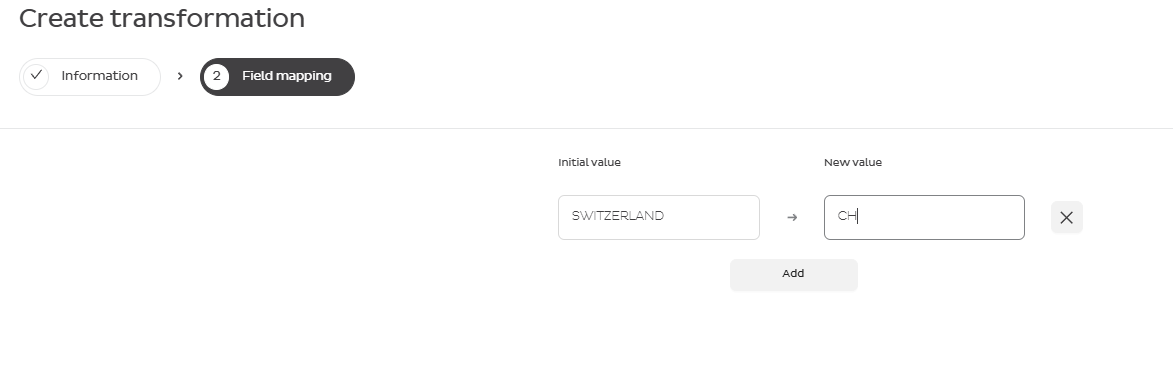
When all mandatory (and optional) field names are entered, press Save.
Shipment Fields You Can Map
When your Import Type is Shipments, you can map your CSV columns to the fields below. Map only the columns you have — anything you leave out simply won't be filled in.
Address details (sender / receiver)
Each address field can be mapped separately for the sender and the receiver.
| Field | What it means | Max length | Required? |
|---|---|---|---|
| Name | Company or person name | 35 | Yes |
| Name2 | Second name line | 35 | Optional |
| Contact | Contact person | 35 | Optional |
| Country | Country as ISO code (e.g. CH, DE) | 2 | Yes |
| State / province | State code | 2 | For US/CA |
| Postal code | ZIP / postal code | 9 | Yes |
| City | City | 35 | Yes |
| Street | Street name and number | 35 | Yes |
| Street2 | Additional address line (receiver only) | 35 | Optional |
| House number | Separate house number | 8 | For NL |
| Phone | Phone in international format +CCNNNNNN | 30 | For GB |
| Email address | 50 | For non-CH/LI countries | |
| Reference | Your address reference | 35 | Optional |
| Language | Recipient language, ISO 639-1 (DE, EN, FR, IT) | 2 | Optional |
The mandatory fields apply to the receiver. For the sender you can instead map a Sender address ID to pull in a saved address book entry.
Service details
| Field | What it means | Max length | Required? |
|---|---|---|---|
| Service code | The DPD product/service for the shipment (e.g. Classic, Express) | — | Optional |
| Option codes | Additional service options, separated by your multi-value delimiter | — | Optional |
You can also map a full return address (name, company name, contact, street, house number, postal code, city, country, state, phone, email, language) — the same fields and limits as the address table above.
Parcel details
| Field | What it means | Max length | Required? |
|---|---|---|---|
| Weight | Parcel weight in kg (e.g. 2.5) | number | Yes |
| Number of parcels | How many parcels are in the shipment | number | Optional |
| Shipment note | Note for the shipment | 70 | Optional |
| Return shipment note | Note for the return shipment | 70 | Optional |
| Customer reference 1–4 | Your shipment-level references | 35 each | Optional |
| Parcel reference 1 / 2 | Your parcel-level references, printed on the label and manifest | 35 each | Optional |
| Parcel reference 3 / 4 | Additional parcel references for your own use | — | Optional |
| Insured amount + currency | For the Higher Insurance service: the insured value and its currency (e.g. CHF) | currency 3 | Optional |
| Number of swap parcels | Number of swap parcels (Swap service) | number | Optional |
For dangerous goods in limited quantities, you can also map: UN number, substance code, packaging group, class, and substance weight.
Weight is required for every parcel — make sure your CSV has a weight column (in kg) before importing.
Upload the CSV File
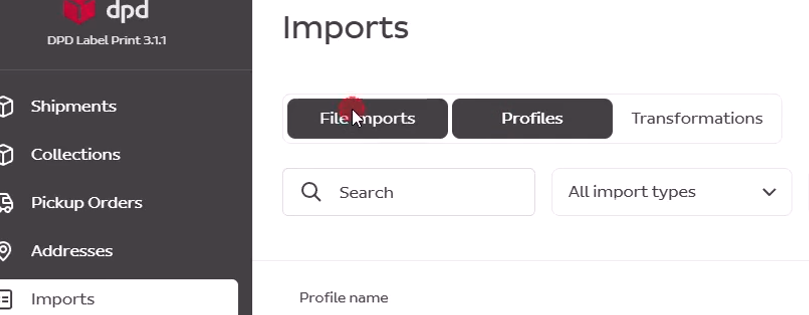
- Go to File Imports
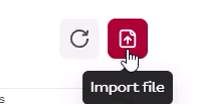
- Press Import File in the top-right corner
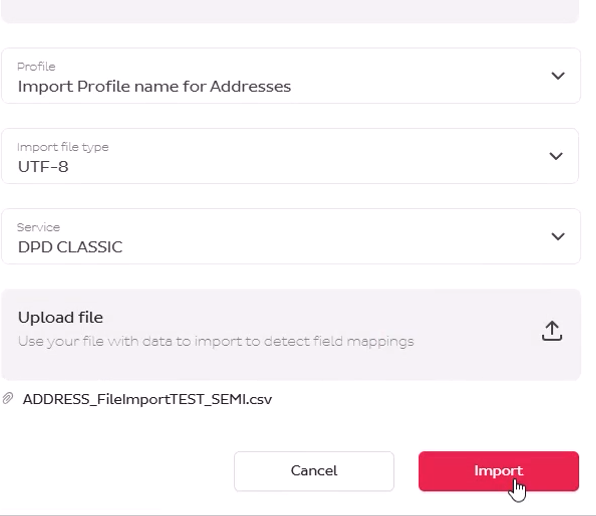
- Choose the Profile (the name you entered in step 1)
- Upload the CSV file and press Import
- Press Refresh

The imported information will appear in your address book or shipments.
Technical Requirements for CSV File
The system supports flexible CSV formats with automatic header detection and multiple encoding/delimiter options.
Character Encoding
Choose one of the supported encodings:
| Encoding | Use Case | Notes |
|---|---|---|
| UTF-8 | Recommended for all files | Universal support, handles all special characters |
| ISO-8859-1 | Western European languages | German umlauts (ä, ö, ü), French accents (Latin-1) |
| Windows-1250 | Central European languages | Polish, Czech, Hungarian, Slovak |
| Windows-1251 | Cyrillic characters | Ukrainian, Bulgarian, Russian |
| Windows-1252 | Western European languages | German, French, Italian (Windows Latin-1) |
Save your CSV as UTF-8 in Excel: File → Save As → CSV UTF-8 (Comma delimited)
Field Delimiters
| Delimiter | Symbol | Excel Export (Region) | Use When |
|---|---|---|---|
| Semicolon | ; | European Excel (DE/FR/IT) | Recommended for European locales |
| Comma | , | US/UK Excel | Data doesn't contain commas |
| Tab | \t | Manual export | Data contains many special characters |
| Pipe | | | Database exports | Technical integrations |
Your data must not contain the delimiter character, or it must be properly quoted.
CSV Header Format
Headers must start with a letter (A–Z, a–z) or underscore (_).
Allowed characters in headers (after the first character):
| Character | Examples |
|---|---|
| Letters | A–Z, a–z |
| Numbers | 0–9 |
| Underscore | _ |
| Hyphen | - |
| Dot | . |
| Space | |
| Parentheses | ( ) |
| Forward slash | / |
| Colon | : |
| Ampersand | & |
| Comma | , |
Not allowed as first character: Numbers, special symbols ($, #, @, !, etc.)
Valid header examples:
Name;Address1;PostalCode;Country
DokStatus;DokDat.;Order_Nr;Weight.KG
Customer Name;Street & Number;Date/Time;Status (Active)
recipient_name;recipient_address;tracking-number
Invalid header examples:
123;456;789          (starts with number)
$Amount;#ID;@Email   (special chars: $, #, @)
;Name;Address        (empty first column)
Header Auto-Detection
The system automatically detects whether the first row is a header by analysing:
- Header characteristics: contains at least one letter, not purely numeric, matches the allowed character pattern
- Data characteristics: second row contains numbers, emails, or significantly different text; length difference > 3 characters from header
| First Row | Second Row | Detection Result |
|---|---|---|
Name;Address;Weight | John Doe;Main St 1;2.5 | Header detected |
Customer;Order;Total | ACME Corp;12345;99.99 | Header detected |
123;456;789 | 111;222;333 | No header (all numeric) |
Active;Pending;Done | Active;Done;Pending | Ambiguous (similar text lengths) |
CSV Configuration Parameters
| Parameter | Type | Description | Example Values |
|---|---|---|---|
columnDelimiter | String | Character separating fields | ; , \t | |
decimalSeparator | String | Decimal point for numbers | . (US) or , (EU) |
multiValueDelimiter | String | Separator for multi-value fields | | ; , |
containsHeader | Boolean | Whether first row is a header | true / false |
Decimal separator examples:
European format (comma as decimal):
Name;Weight;Price
Product A;2,5;19,99
Product B;1,8;15,50
US format (dot as decimal):
Name,Weight,Price
Product A,2.5,19.99
Product B,1.8,15.50
Creating CSV Files from Excel
-
Prepare your data:
- First row = headers
- No empty rows at the top
- Consistent column count
-
Save as CSV:
- European (semicolon): File → Save As → CSV (Semicolon delimited) *.csv
- UTF-8: File → Save As → CSV UTF-8 (Comma delimited) *.csv
- US (comma): File → Save As → CSV (Comma delimited) *.csv
-
Verify encoding:
- Open the file in Notepad or TextEdit
- Check that special characters (ä, ö, ü, é) display correctly
Common Issues & Solutions
Something not looking right after import? Here are the most common cases and how to fix them in your import profile.
Special characters look wrong — e.g. Müller shows up as Müller
The file's encoding doesn't match your profile. Re-save the file as UTF-8 (in Excel: Save As → CSV UTF-8) and set Encoding to UTF-8 in the profile. Open the file in a text editor to check the accents look right.
Numbers are treated as text — e.g. 2,5 isn't recognised as a number
Your decimal sign doesn't match the profile. Set Decimal separator to match your file: a comma (,) for European files, a dot (.) for US/international files.
All your data lands in one column
The profile is splitting columns on the wrong character. Check what separates the columns in your file, then set the matching Column delimiter — European Excel usually uses a semicolon (;), US Excel a comma (,).
Your header row is imported as data
The header row wasn't recognised. Make sure your headers start with a letter (not a number), turn on Contains header in the profile, and check that your data rows look different from the header.
The import fails or shows unexpected columns
This is usually caused by stray rows or columns. Remove any empty rows at the top of the file, make sure every row has the same number of columns, and delete any leftover delimiters at the end of your lines.
Pre-Import Checklist
Before importing, verify:
- File encoding is UTF-8 (or appropriate for your language)
- Delimiter matches configuration (semicolon for Europe, comma for US)
- Headers start with letters (if using headers)
- No empty rows at the top
- Consistent column count across all rows
- Decimal separator matches your number format
- Special characters (ä, ö, ü, é) display correctly in a text editor
- No trailing spaces or delimiters
- File size is reasonable (< 25 MB recommended)